Most of the internet runs on an operating system you may never have installed yourself. Linux sits underneath web servers, databases, containers, network gear, and the machines that build the sites we ship. This guide is a practical introduction: what Linux actually is, how the distributions differ, and which concepts are worth learning first — written for people who build things on the web, not for sysadmins who already know all of it.
What Linux actually is
Linux is a kernel: the core layer that manages hardware, memory, processes, and the conversation between software and hardware. On its own, a kernel is not something a person uses directly.
What people call “Linux” is the kernel plus a stack of tools around it — a distribution: the kernel, system utilities, an init system, a package manager, a shell, and the applications on top. That distinction explains the most confusing thing about Linux: there is no single “Linux operating system”. There is a family, sharing one kernel and mostly the same conventions.
A short history
In 1991, Linus Torvalds — then a student in Finland — started writing a kernel for x86 computers. He published it, other developers contributed, and the project grew through open collaboration. The kernel was paired with software from the GNU project and other open-source projects, and together they formed a complete, usable system.
Three decades later, that combination runs far more than desktops: web servers, database servers, cloud infrastructure, network appliances, supercomputers, embedded devices, and the containers behind most modern deployments.
Why Linux is everywhere
Two properties explain most of its reach:
- Open source. The code can be read, modified, and redistributed under its licences. No vendor can quietly end support or double the price, and anyone can audit what runs on their machines.
- Flexible. The same kernel scales from a stripped-down system with one job to a full desktop, assembled from parts you can swap.
That is why Linux turns up in web servers, database servers, cloud infrastructure, desktops and laptops, routers and network appliances, IoT and embedded devices — and, closest to our work, developer machines and containers.
Choosing a distribution
You do not install “Linux”; you install a distribution. The differences are mostly the package manager, release cadence, defaults, and the kind of support you can expect.
Ubuntu
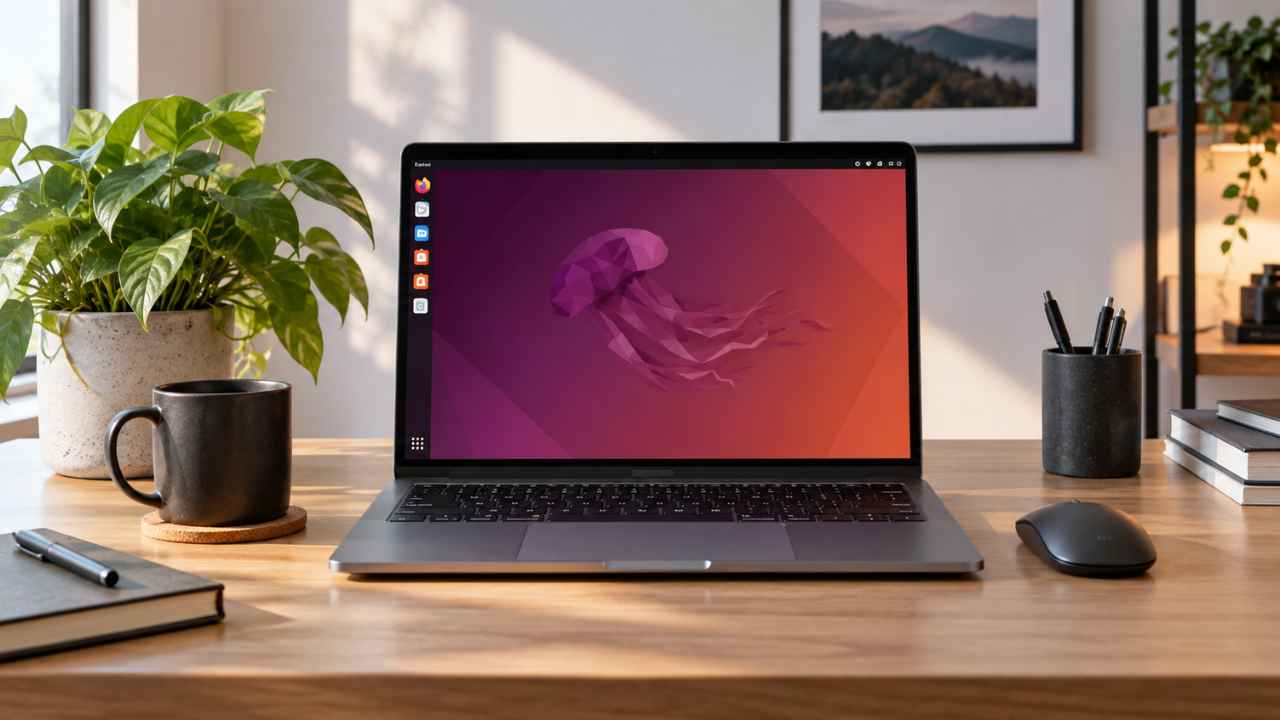
Popular on both desktops and servers, with a large amount of documentation and community. It is often the first recommendation for beginners and a very common default on cloud servers. Our Ubuntu guide covers its LTS cadence, desktop flavours, and the commands worth learning first.
Debian
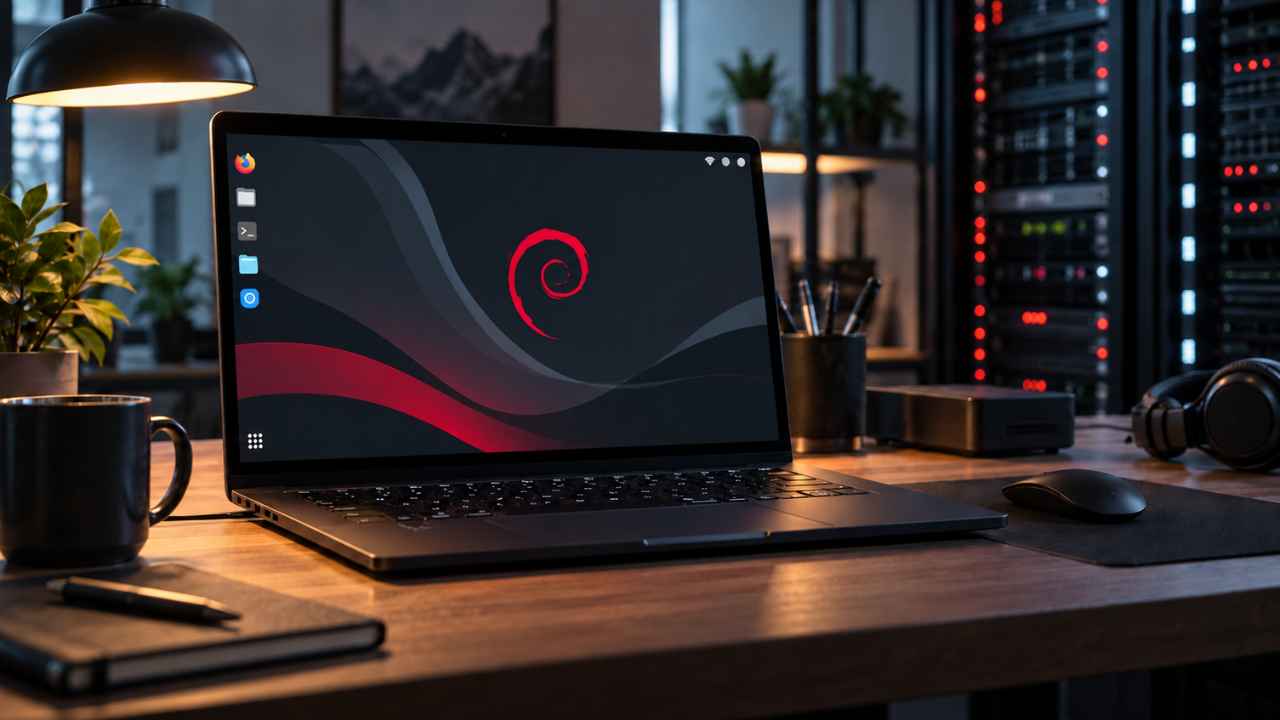
One of the longest-running distributions and the base for many others, including Ubuntu. Known for stability and a clear, well-documented release policy. Our Debian guide covers its Stable–Testing–Unstable branches, APT package management, and why so many servers run it.
Fedora
Adopts newer Linux technologies relatively early and stays close to the Red Hat ecosystem.
Arch Linux
Puts a lot of control in the user’s hands; installation is far more manual than beginner-oriented distributions. Useful when you want to learn how a system is assembled.
Linux Mint
A desktop-focused distribution aiming at a familiar, straightforward experience — a common first stop for people moving from another operating system.
For servers we add criteria of our own: stable packages, security updates with a predictable lifetime, and long-term support so a machine does not have to be rebuilt every year.
The desktop is a choice
One of the stranger ideas for newcomers: on Linux the desktop is just an application layer. Popular environments — GNOME, KDE Plasma, Xfce, Cinnamon, MATE, LXQt — decide the panels, menus, window management, system settings, and bundled applications.
Two machines running the same kernel can therefore look and feel completely different, and you can change that without reinstalling anything.
The terminal is not optional
Linux has graphical applications, and on a desktop you can get through most days without a terminal. But the terminal is where systems are administered, and it is the part that transfers to servers, which usually have no desktop at all. The first commands worth knowing:
pwd                      # where am I?
ls                       # what is in this directory?
cd Documents             # change directory
mkdir project            # create a directory
cp file.txt backup.txt   # copy a file
mv file.txt documents/   # move (or rename) a file
rm file.txt              # delete a file
That short list covers a surprising share of daily work: look, move, create, remove. Everything else builds on the same idea — small commands that do one thing and can be combined.
Package managers keep software in one place
Instead of downloading installers from websites, Linux installs software from repositories through a package manager:
sudo apt update && sudo apt install nginx   # Debian and Ubuntu
sudo dnf install nginx                      # Fedora
sudo pacman -S nginx                        # Arch Linux
The package manager also handles updates, dependencies, and security patches — which is a large part of why maintaining a Linux server can be a scripted routine instead of a monthly expedition.
The filesystem layout
Linux organises everything under one root rather than per-drive letters:
/
├── home/   user directories and their data
├── etc/    system configuration files
├── var/    data that changes while the system runs (logs, queues, caches)
├── usr/    applications, libraries, shared resources
├── bin/    essential command binaries
├── tmp/    temporary files
└── root/   home directory of the root user
Knowing these paths answers most “where would that live?” questions, and it is the first thing that makes a Linux server feel navigable instead of opaque.
Linux for developers
Development tooling assumes Linux far more often than it assumes anything else. Python, JavaScript and Node.js, Go, Rust, C and C++, Java, PHP, Ruby, Docker, and Git all run natively and are usually tested there first.
The practical benefit is parity. When production runs Linux and your development environment runs Linux too, the gap between “works locally” and “works in production” gets much smaller — which is why we work in containers even on client projects that end up as static sites.
Linux on servers
This is where Linux becomes unavoidable, and where it matters most for the work we do:
- Web servers (Nginx, Apache, Caddy) and the reverse proxies in front of applications.
- Databases (PostgreSQL, MySQL, and the rest) and the storage they rely on.
- File, DNS, and mail services — usually on Linux, rarely with a desktop attached.
- Containers and virtual machines, which are Linux on top of Linux.
- Cloud infrastructure, where most instances and managed runtimes are Linux underneath.
Administration normally happens over SSH, without a graphical interface. That is exactly why the terminal habits above are worth building early: they are not a hobbyist preference, they are the interface the job uses.
Where Linux is strong
- Open source. Readable, auditable, and independent of one vendor’s roadmap.
- Flexible. The same kernel serves a minimal single-purpose system and a full desktop.
- Choice of distributions. Fit the tooling to the job instead of the other way around.
- Strong for servers and development. Most infrastructure software is built and tested on Linux first.
- Customisable. Nearly every layer can be replaced or reconfigured.
Where Linux asks more from you
- Learning curve. Some tasks require terminal literacy and a mental model of the system.
- Software compatibility. Not every commercial application ships a native Linux version.
- Hardware compatibility. Some devices — certain printers, GPUs, capture cards — need extra configuration or drivers.
- Fragmentation. Many distributions, desktop environments, package managers, and package formats can overwhelm newcomers.
None of these are absolute. They depend on the distribution, the hardware, and what you actually need to do with the machine.
Is Linux good for beginners?
Yes, as long as the expectation is realistic. Modern desktop distributions ship graphical installers, application stores, and sensible defaults, so everyday use does not require the terminal at all. The productive path is to learn in layers:
- Filesystem structure
- Basic command line
- Users and permissions
- Package management
- Processes and services
- Networking
- Shell scripting
- SSH and server administration
Nobody needs all eight at once, and the order matters more than the speed. Using the system for real work is what makes the concepts stick.
Where to go next
Understanding Linux is the entry ticket to server administration, networking, containers, DevOps, security, cloud infrastructure, and shell scripting. Guides that go deeper into those subjects are collected in this topic as we write them — and they sit alongside our notes on hosting and delivery and keeping sites running.
Curious how this applies to your own servers or containers? Tell us what you run and we will start with the parts worth standardising first.